Structure
Global representation
↳Project
         ↳Campaign
                  ↳Insertion
                            ↳Pixels
Examples
Project

Campaign

Insertion
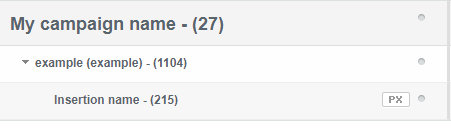
Pixels
Create Project
Project is used to organize campaigns and can be compared to a WCM folder.
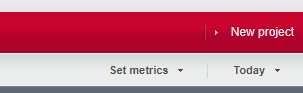
Select « New Project » on the top right side :
Choose your project name.
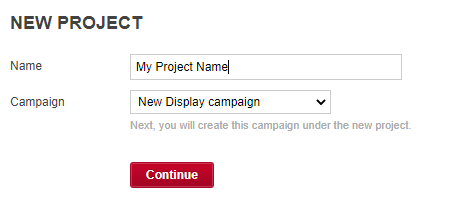
It will be possible to directly create you Campaign by choosing the type.
Find more informations below if your project has already been created.
Learn more about Projects :
Create Campaign
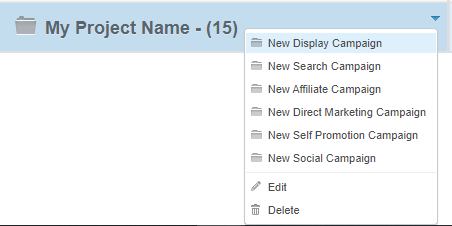
After Project creation, hover item and click on the right arrow :

Select you campaign type (display to generate pixel and click links)
Add :
- Campaign name
- URL
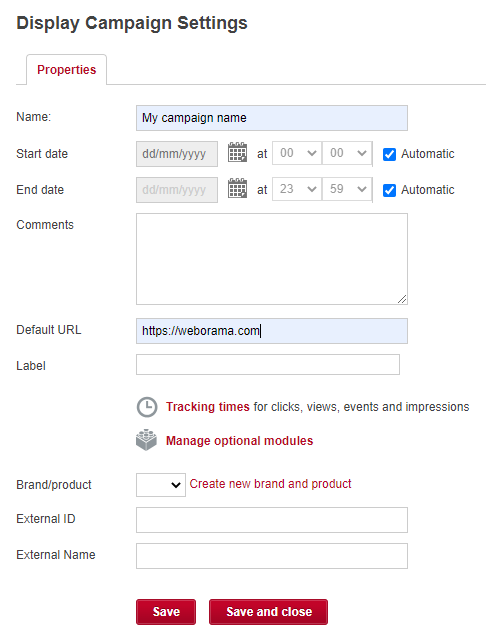
Learn more about Campaigns :
- https://faq.op-weborama.fr/index.php/2020/07/28/creating-and-managing-campaigns-2/
- https://faq.op-weborama.fr/index.php/2020/07/28/self-promotion-campaigns/
- https://faq.op-weborama.fr/index.php/2020/07/28/campaigns-tracking-setup-options/
Create Insertion
- Enter campaign page by clicking « Open »
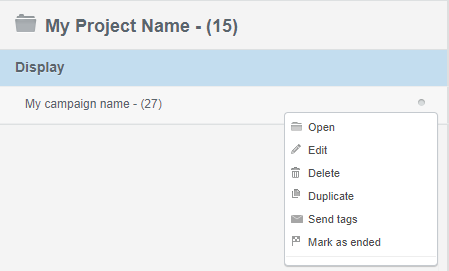
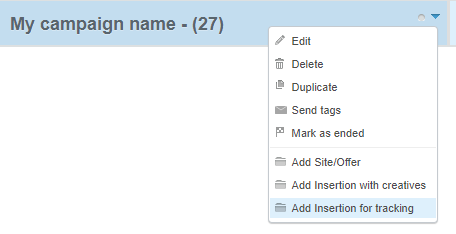
- Hover campaign item
- Click to right arrow
- Select « Add Insertion for tracking »
- Add insertion name, site/offer and URL

- Click « Save and close »
Learn more about Campaigns :
Retrieve links
You only can retrieve links by site/offer.
To do so, hover site/offer item and click right arrow :
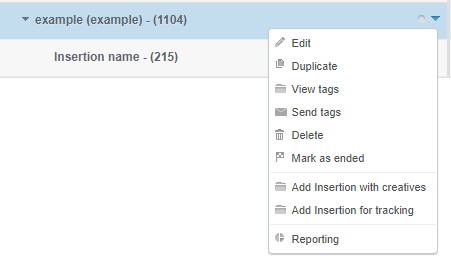
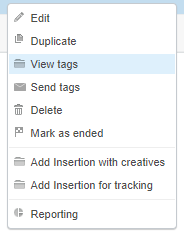
Select « View tags » to see all site/offer linked insertions :
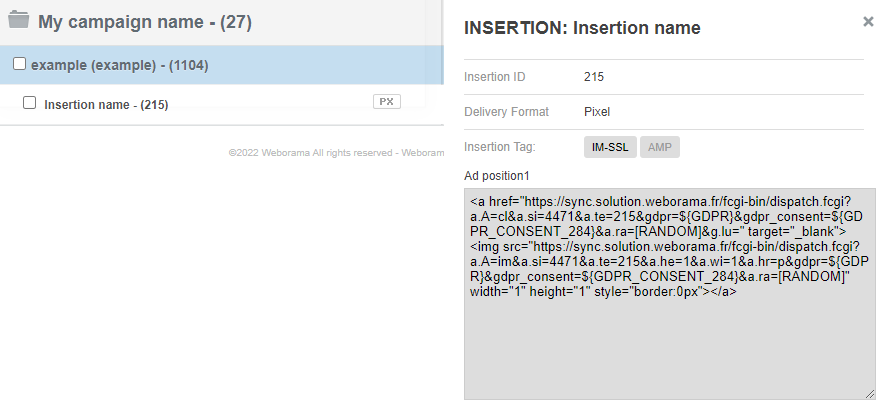
Simple way
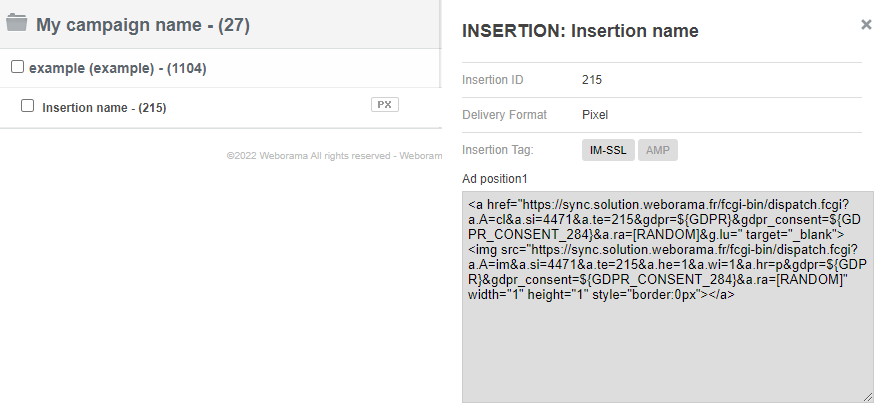
Click on insertion name to display links :
Excel file
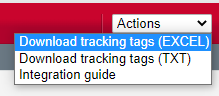
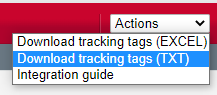
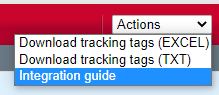
Click top right Actions dropdown and select « Download tracking tags (EXCEL) »
Text file
Click top right Actions dropdown and select « Download tracking tags (TXT) »
Integration guide
Was this helpful?
0 / 0